---
title: How do I Connect Occupier to NetSuite?
description: Integrate your Occupier and NetSuite accounts to synchronize journal entries
---
[Skip to content](https://help.occupier.com/knowledge/how-to-connect-occupier-to-netsuite#main-content)
English
Show submenu for translations
[Customer portal](https://help.occupier.com/tickets-view?hsLang=en)
![H-Teal (1).svg\]](https://help.occupier.com/hubfs/H-Teal%20(1).svg)
- [Tickets](https://3455891.hs-sites.com/tickets-view)
- [Sign out](https://3455891.hs-sites.com/_hcms/mem/logout)
Open main navigation
Close main navigation
- [Tickets](https://3455891.hs-sites.com/tickets-view)
- [Sign out](https://3455891.hs-sites.com/_hcms/mem/logout)
- English
Show submenu for translations
- [Customer portal](https://help.occupier.com/tickets-view)
Hi there! How can we help?
- There are no suggestions because the search field is empty.
1. [Help Center](https://help.occupier.com/knowledge?hsLang=en)
2. [Lease Accounting](https://help.occupier.com/knowledge/lease-accounting?hsLang=en)
3. [NetSuite Journal Entry Integrations](https://help.occupier.com/knowledge/lease-accounting?hsLang=en#netsuite-journal-entry-integrations)
# How do I Connect Occupier to NetSuite?
## Integrate your Occupier and NetSuite accounts to synchronize journal entries
#### Prerequisites
The setup steps in NetSuite must be completed by a user with **Administrator** permissions in your company's NetSuite instance.
#### Turn on NetSuite features
Enable Web Services and Token-based authentication in your NetSuite account.
- In your NetSuite account, navigate to Setup \> Company \> Enable Features.
- In the [Enable features](https://system.netsuite.com/app/setup/features.nl) section, confirm the below features are enabled:
- Under *Analytics*, enable Suiteanalyticsworkbook*.*
- Under *SuiteCloud*, enable:
- Soap web services
- REST web services
- Token-based authentication


#### Install the Occupier sync bundle
Our bundle will create a role with the required permissions to use the integration.
Open the “**Occupier Sync Bundle**“ link:
[https://system.netsuite.com/app/bundler/bundledetails.nl?sourcecompanyid=2905426&domain=PRODUCTION&config=F&id=538816](https://system.netsuite.com/app/bundler/bundledetails.nl?sourcecompanyid=2905426&domain=PRODUCTION&config=F&id=538816)
Click **Install.**
Note: Installing the bundle may take up to 5 minutes. When the bundle is installed, there will be a green check in the status column.
If you are unable to install the bundle, manually create the role using the [list of permissions](https://help.occupier.com/knowledge/how-to-connect-occupier-to-netsuite#Manual_Role) provided at the end of this page.
#### Create an Integration
Once the role is set up, you can follow these steps to generate the consumer Key & Secret:
1. Go to **Setup** \> **Integrations** \> **Manage integrations**.
2. Click the **'New'** button to create a new integration. 
Name: Enter a meaningful name (for example, *Occupier Integration*)
Authentication: Under the 'Authentication' section,
- Check **Token-Based Authentication**.
- Uncheck **TBA: Authorization flow**
Oauth 2.0: Under the **Oauth 2.0** section,
- Uncheck **Authorization Code grant**
3. Click the **'Save'** button to save the changes.
Once saved, the Consumer Key and Consumer Secret will be generated.
Make sure to **copy both the 1) "Consumer Key" and 2) "Consumer Secret"** before leaving this screen, ***as you will not be able to retrieve this information later.***
#### Assign a user to the role
It is advisable to create a dedicated user or an "integration role" for this purpose rather than assigning the role to an existing user. This approach enhances tracking and auditing operations, facilitating seamless data exchange between various platforms while ensuring access is limited to only the essential information and functions necessary for the integration. Essentially, it functions as a specialized user account with restricted permissions, specifically designed to support integration tasks.
1. Click **Lists** \> **Employees** \> **New**
2. Enter the employee details (e.g. *Integration User*), and email address.
3. Click **Access** tab
- select **Give Access**.
- Enable **Manually Assign or Change Password** and specify a password.
4. Under **Roles**, select **Occupier Sync Role** (role imported with the bundle) and click **Add**.
#### Custom Segment permissions
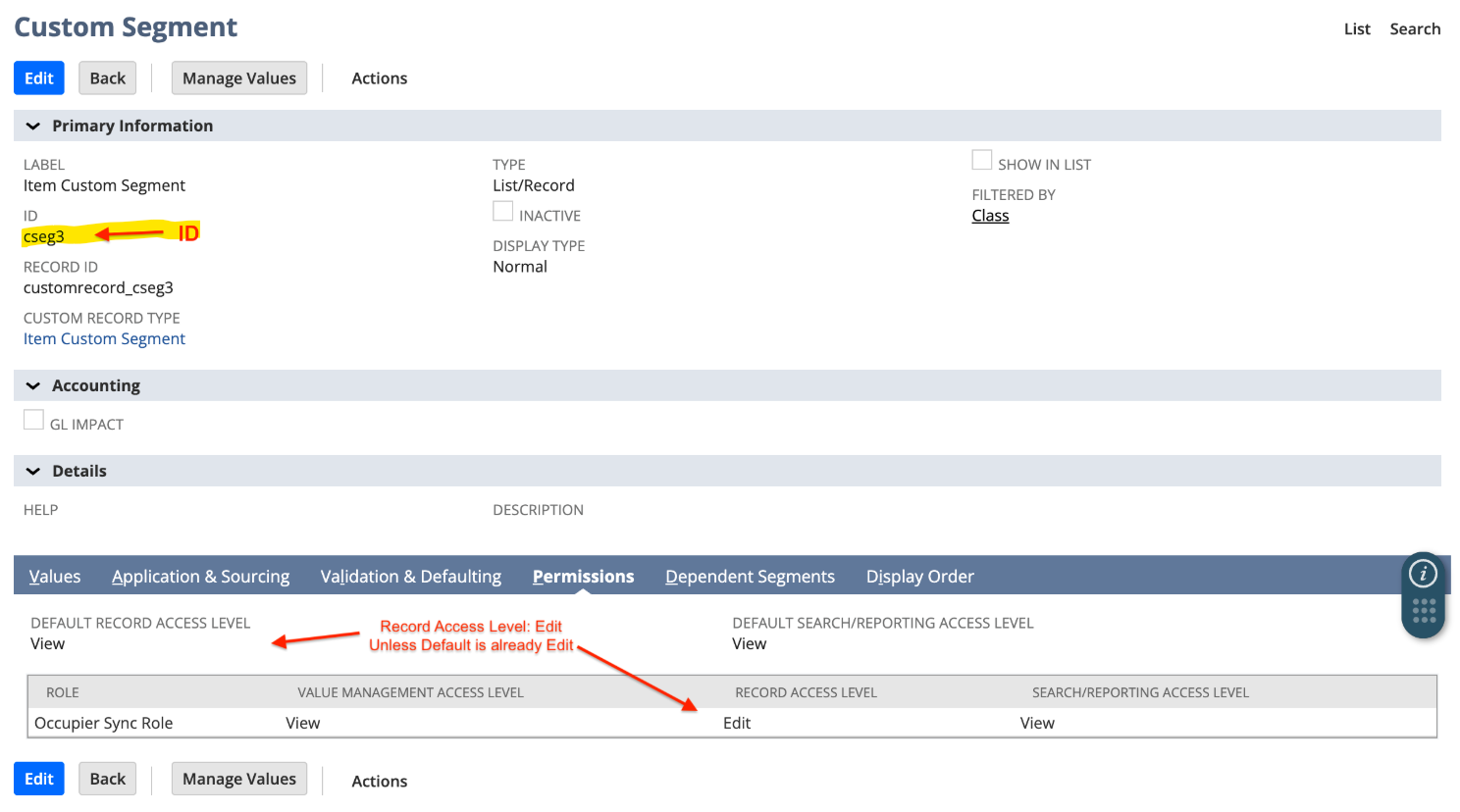
To include custom segments in the integration, make sure the "**Occupier Sync Role**" has the "**Record Access Level**" permission set to "Edit" or higher.
***Important:*** This integration is compatible solely with "Transaction Columns" custom segments for Journal Entry line items. If you have not yet created your custom segment, please consult the official NetSuite documentation for detailed instructions on how to do so.
- Go to **Customization** \> List, Records, & Fields \> Custom Segments
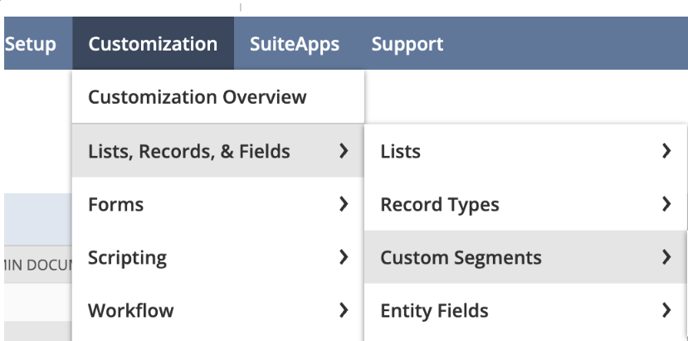
- Find the custom segment you want to use and click `Edit`
- In the **Permissions** section, ensure the assigned role has "Edit" access under "Record Access Level" **or** set "Default Record Access Level" to "Edit" or higher
- Locate and copy the segment ID (the value starting with `cseg`).
- Provide this ID to **Occupier Support**, including the corresponding Segment Type in Occupier Settings for mapping purposes. The Occupier team will handle this mapping process.
#### Create Access tokens
Create a new Access Token for the user and role created:
1. Go to **Setup** \> **Users/Roles** \> **Access Tokens**.

1. Click the **'New'** button to create a new Access token
2. Complete the form
- Select the "**Application name**": **Occupier Integration**
- Select the "**User**", which we created in the previous steps (e.g. *Integration User*)
- Give the token a recognizable "token name"
- Click the **'Save'** button to save the changes.
Once saved, the Account **Token ID** and **Secret** will be generated.
Copy the "Token Id" and the "Token secret". You can not access this information once you exit this screen.
#### Finding your NetSuite Account ID
1. This is the combination of letters or numbers before "app.netsuite.com" of the URL
2. If your URL is "https://**7600508**.app.netsuite.com...", your NetSuite Account ID is **7600508**
### Occupier Settings
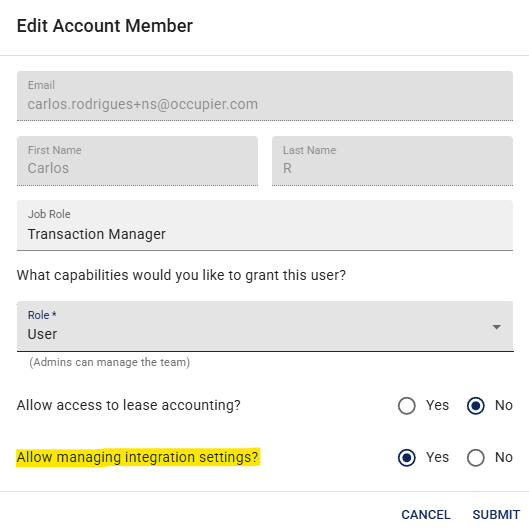
This step requires an Occupier user with access to manage integration settings.
To add the Manage Integration Settings to a user, the Occupier Admin should select "**Allow managing integration settings?**" button. *To maintain security and controls, it is advisable to avoid granting lease accounting access to any user who has permissions to manage integration settings.*
1. Open [https://app.occupier.com/settings/integrations](https://app.occupier.com/settings/integrations)
2. Click on the toggle for NetSuite

1. Enter the credentials obtained in the previous steps.
1. **Account ID**: Alphanumeric prefix on your NetSuite URL
2. **Consumer Key**: Confirmation screen after creating the integration
3. **Consumer Secret**: Confirmation screen after creating the integration
4. **Token ID:** Confirmation screen after creating your Access Token
5. **Token Secret**: Confirmation screen after creating your Access Token
2. Click **Save**
#### Appendix: Creating the role manually
1. Go to **Setup** \> **Users/Roles** \> **Manage Roles**.
2. Click on the **'New'** button to create a new role.
3. Give the role a name (e.g. Occupier Sync *Role*).
4. Under **'Authentication'**, enable: **'Web Services Only Role'**
5. Under the **'Permissions'** tab, select the appropriate permissions for this role.
- Transactions:
- Find Transaction: Full
- Journal Approval: Create
- Make Journal Entry: Edit

- Reports:
- SuiteAnalytics Workbook: Edit

- Lists:
- Access to transaction numbering audit log: View
- Accounts: View
- Classes: View
- Currency: View
- Departments: View
- Documents and Files: View
- Locations: View
- Subsidiaries: View

- Setup:
- Access Token Management: Full
- Company Information: Full
- Custom Transaction Fields: View
- Manage Accounting Periods: View
- REST Web Services: Full
- SOAP Web Services: Full
- User Access Tokens: Full

- [Getting Started](https://help.occupier.com/knowledge/getting-started?hsLang=en#main-content)
- [The Basics](https://help.occupier.com/knowledge/getting-started?hsLang=en#the-basics)
- [Occupier Onboarding & Abstraction](https://help.occupier.com/knowledge/getting-started?hsLang=en#occupier-onboarding-abstraction)
- [User & Team Management](https://help.occupier.com/knowledge/getting-started?hsLang=en#user-team-management)
- [Email & Notification Management](https://help.occupier.com/knowledge/getting-started?hsLang=en#email-notification-management)
- [Custom Data Management](https://help.occupier.com/knowledge/getting-started?hsLang=en#custom-data-management)
- [Lease Administration](https://help.occupier.com/knowledge/lease-administration?hsLang=en#main-content)
- [Equipment Leases](https://help.occupier.com/knowledge/lease-administration?hsLang=en#equipment-leases)
- [Change History Log](https://help.occupier.com/knowledge/lease-administration?hsLang=en#change-history-log)
- [Clauses](https://help.occupier.com/knowledge/lease-administration?hsLang=en#clauses)
- [Document Storage](https://help.occupier.com/knowledge/lease-administration?hsLang=en#document-storage)
- [Financials](https://help.occupier.com/knowledge/lease-administration?hsLang=en#financials)
- [Creating & Editing a Lease](https://help.occupier.com/knowledge/lease-administration?hsLang=en#creating-editing-a-lease)
- [Critical Dates](https://help.occupier.com/knowledge/lease-administration?hsLang=en#critical-dates)
- [Lease Column Configurations](https://help.occupier.com/knowledge/lease-administration?hsLang=en#lease-column-configurations)
- [Custom Fields](https://help.occupier.com/knowledge/lease-administration?hsLang=en#custom-fields)
- [Contacts](https://help.occupier.com/knowledge/lease-administration?hsLang=en#contacts)
- [Filtering](https://help.occupier.com/knowledge/lease-administration?hsLang=en#filtering)
- [Assets](https://help.occupier.com/knowledge/lease-administration?hsLang=en#assets)
- [Lease Data Exports](https://help.occupier.com/knowledge/lease-administration?hsLang=en#lease-data-exports)
- [Occupier Analytics Dashboard](https://help.occupier.com/knowledge/lease-administration?hsLang=en#occupier-analytics-dashboard)
- [Customizing Data Categories](https://help.occupier.com/knowledge/lease-administration?hsLang=en#customizing-data-categories)
- [Lease Admin Overview](https://help.occupier.com/knowledge/lease-administration?hsLang=en#lease-admin-overview)
- [Column Configuration & Filtering](https://help.occupier.com/knowledge/lease-administration?hsLang=en#column-configuration-filtering)
- [Tasks & Commenting](https://help.occupier.com/knowledge/lease-administration?hsLang=en#tasks-commenting)
- [Lease Payables](https://help.occupier.com/knowledge/lease-administration?hsLang=en#lease-payables)
- [Lease Data Imports](https://help.occupier.com/knowledge/lease-administration?hsLang=en#lease-data-imports)
- [Percentage Rent](https://help.occupier.com/knowledge/lease-administration?hsLang=en#percentage-rent)
- [Lease Accounting](https://help.occupier.com/knowledge/lease-accounting?hsLang=en#main-content)
- [Understanding ASC 842, IFRS16, GASB87 and FRS102](https://help.occupier.com/knowledge/lease-accounting?hsLang=en#understanding-asc-842-ifrs16-gasb87-and-frs102)
- [Account Set-up](https://help.occupier.com/knowledge/lease-accounting?hsLang=en#account-set-up)
- [FX Rates](https://help.occupier.com/knowledge/lease-accounting?hsLang=en#fx-rates)
- [Recognizing a Lease](https://help.occupier.com/knowledge/lease-accounting?hsLang=en#recognizing-a-lease)
- [Impairing a Lease](https://help.occupier.com/knowledge/lease-accounting?hsLang=en#impairing-a-lease)
- [Lease Modifications](https://help.occupier.com/knowledge/lease-accounting?hsLang=en#lease-modifications)
- [Lease Accounting Reporting](https://help.occupier.com/knowledge/lease-accounting?hsLang=en#lease-accounting-reporting)
- [Importing Data Into Accounting](https://help.occupier.com/knowledge/lease-accounting?hsLang=en#importing-data-into-accounting)
- [Allocations](https://help.occupier.com/knowledge/lease-accounting?hsLang=en#allocations)
- [Close Books Process](https://help.occupier.com/knowledge/lease-accounting?hsLang=en#close-books-process)
- [NetSuite Journal Entry Integrations](https://help.occupier.com/knowledge/lease-accounting?hsLang=en#netsuite-journal-entry-integrations)
- [Transaction Management](https://help.occupier.com/knowledge/transaction-management?hsLang=en#main-content)
- [Task Templates](https://help.occupier.com/knowledge/transaction-management?hsLang=en#task-templates)
- [Filtering](https://help.occupier.com/knowledge/transaction-management?hsLang=en#filtering)
- [Custom Categories](https://help.occupier.com/knowledge/transaction-management?hsLang=en#custom-categories)
- [Deal Column Configurations](https://help.occupier.com/knowledge/transaction-management?hsLang=en#deal-column-configurations)
- [Documents](https://help.occupier.com/knowledge/transaction-management?hsLang=en#documents)
- [Comps](https://help.occupier.com/knowledge/transaction-management?hsLang=en#comps)
- [Deal Stages](https://help.occupier.com/knowledge/transaction-management?hsLang=en#deal-stages)
- [Creating & Editing a Deal](https://help.occupier.com/knowledge/transaction-management?hsLang=en#creating-editing-a-deal)
- [Site Selection](https://help.occupier.com/knowledge/transaction-management?hsLang=en#site-selection)
- [Broker Deals CRM](https://help.occupier.com/knowledge/broker-deals-crm?hsLang=en#main-content)
- [Custom Deal Stages](https://help.occupier.com/knowledge/broker-deals-crm?hsLang=en#custom-deal-stages)
- [Custom Fields](https://help.occupier.com/knowledge/broker-deals-crm?hsLang=en#custom-fields)
- [Broker Deal Exports](https://help.occupier.com/knowledge/broker-deals-crm?hsLang=en#broker-deal-exports)
- [Broker Digest emails](https://help.occupier.com/knowledge/broker-deals-crm?hsLang=en#broker-digest-emails)
- [Critical Date Columns](https://help.occupier.com/knowledge/broker-deals-crm?hsLang=en#critical-date-columns)
- [Creating & Editing a Deal](https://help.occupier.com/knowledge/broker-deals-crm?hsLang=en#creating-editing-a-deal)
- [Comps](https://help.occupier.com/knowledge/broker-deals-crm?hsLang=en#comps)
- [Site Selection](https://help.occupier.com/knowledge/broker-deals-crm?hsLang=en#site-selection)
- [Broker Deal Teams](https://help.occupier.com/knowledge/broker-deals-crm?hsLang=en#broker-deal-teams)
- [Negotiations & Proposals](https://help.occupier.com/knowledge/broker-deals-crm?hsLang=en#negotiations-proposals)
- [Clients Tab](https://help.occupier.com/knowledge/broker-deals-crm?hsLang=en#clients-tab)
- [Monthly Release Notes](https://help.occupier.com/knowledge/monthly-release-notes?hsLang=en#main-content)
- [2025 Product Release Notes](https://help.occupier.com/knowledge/monthly-release-notes?hsLang=en#2025-product-release-notes)
- [2024 Product Release Notes](https://help.occupier.com/knowledge/monthly-release-notes?hsLang=en#2024-product-release-notes)
- [2026 Product Release Notes](https://help.occupier.com/knowledge/monthly-release-notes?hsLang=en#2026-product-release-notes)
[](https://www.occupier.com)
[mailto:email@email.com](mailto:email@email.com)
Copyright © 2026, Occupier