![H-Teal (1).svg]](https://help.occupier.com/hubfs/H-Teal%20(1).svg)
Occupier's Calendar Sync feature allows users to subscribe to a live feed of their lease critical dates directly in their external calendar application (Google Calendar, Apple Calendar, Microsoft Outlook, and any other iCalendar-compatible app). Once subscribed, the calendar automatically stays up to date — no manual exports or re-imports needed.
The feed is driven by your Saved Views on the Critical Dates page, so the events that appear in your calendar always match the filters you have set in Occupier.
What Gets Synced
The calendar feed includes lease critical date events that meet all of the following eligibility criteria:
- Lease-based events only — Broker Lease events are not included
- Unactioned events only — events that have been exercised or ignored are excluded
- Events occurring within 3 years of today
- Events on leases you have permission to view in Occupier
- Events matching your Saved View filters (the authoritative source of filtering)
|
Note: Calendar sync is a one-way feed from Occupier to your calendar. You cannot edit lease data from your calendar app — changes must be made inside Occupier. |
What Is Not Included
- Broker Lease critical dates
- Exercised or ignored events
- Events more than 3 years in the future
- Events on leases you do not have permission to access
Calendar Event Format
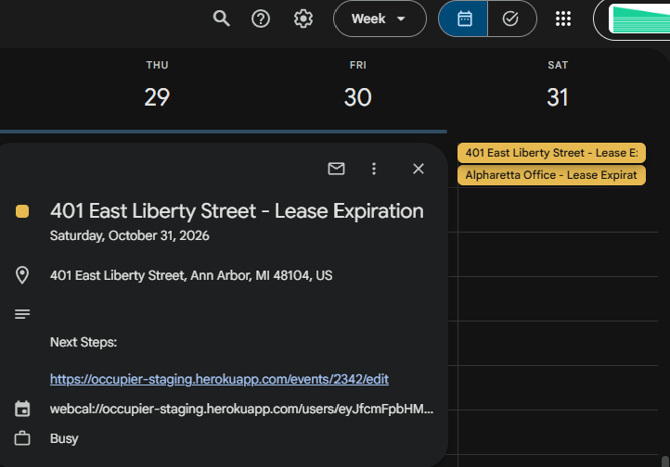
Each critical date is synced as an all-day event in your calendar with the following details:
- Title / Summary: Event type name + lease / property name
- Date: All-day event on the effective date (or end date if no effective date is set)
- Description: Event description, recommended next steps, and key lease context
- Location: Property address and lease name
- Link / URL: Direct link back to the event detail in Occupier
- UID: A unique ID for the event (for example, `event-12345@occupier.com`) so your calendar always stays in sync.
How to Subscribe to Your Calendar
Follow the steps below to set up your calendar subscription. You only need to do this once per Saved View — the feed will automatically stay current.
Step 1: Navigate to the Critical Dates Page
Log in to Occupier and go to the Critical Dates page from the left navigation menu.
Step 2: Select or Create a Saved View
Locate the Saved View you want to subscribe to. Saved Views contain your filter selections (event types, lease statuses, locations, date ranges, etc.) and determine which events appear in your calendar feed.
If you do not have a Saved View yet, set up your desired filters and save the view before subscribing.
Step 3: Click 'Subscribe to Calendar'
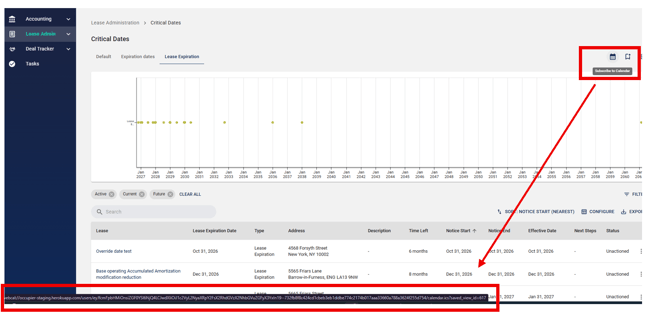
On the Saved View, click the Subscribe to Calendar button. A modal or panel will appear with your unique subscription URL.
Step 4: Copy the Subscription URL
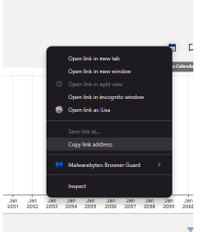
Right-click the calendar icon and select “Copy link address” to copy your unique subscription URL. This URL is specific to you and your Saved View — keep it private.
Step 5: Add to Your Calendar App
Paste the subscription URL into your calendar application. See the instructions below for each supported calendar app.
Google Calendar
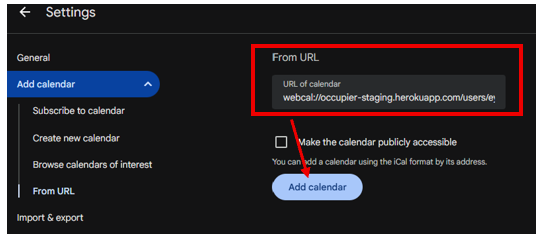
- Open Google Calendar and click the + next to Other calendars in the left sidebar.
- Select From URL.
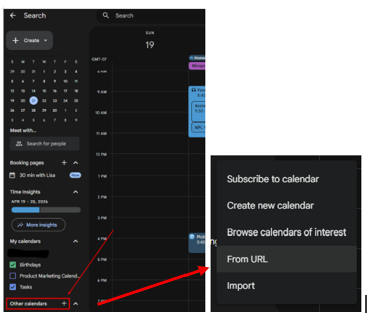
- Paste the subscription URL and click Add Calendar.
- Your critical dates will appear automatically.
Apple Calendar (macOS / iOS)
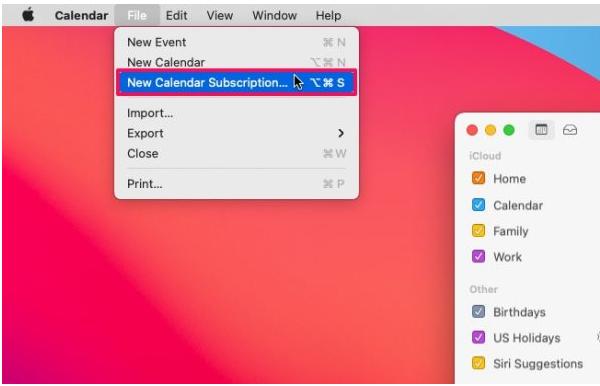
- Open Calendar on your Mac and go to File > New Calendar Subscription.
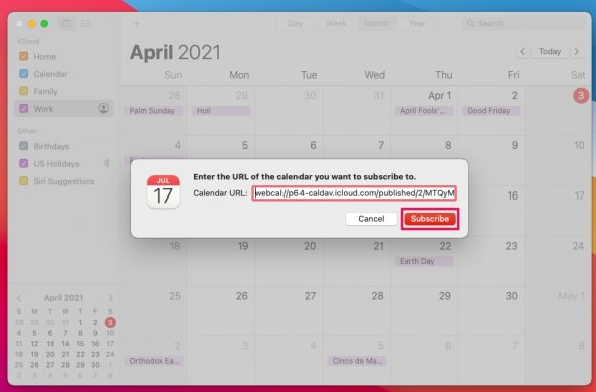
- Paste the subscription URL and click Subscribe.
- Configure the name, color, and refresh frequency (recommended: every hour).
- Click OK. The calendar will sync to your iPhone/iPad automatically if iCloud is enabled.
Microsoft Outlook
- Open Outlook and go to the Calendar view.
-
Select Calendar
from the navigation pane and click
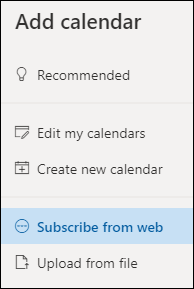
Add calendar.
-
Select Subscribe from web.
-
Enter the URL for the calendar.
-
Select Import.
|
Note: If you are unable to subscribe, try to upload the calendar instead. Microsoft Outlook / Exchange may strip calendar alert/reminder notifications from externally subscribed calendars. If you do not see reminders, this is a known Outlook limitation — we recommend using the Occupier Portfolio Digest for email-based critical date alerts. |
How Updates Work
- The calendar feed is live — you do not need to re-subscribe when lease data changes. Here is how updates propagate:
- Event added or updated in Occupier → the change appears in your calendar at the next refresh cycle (typically within 1 hour, depending on your calendar app's polling interval)
- Event exercised or ignored in Occupier → the event is automatically removed from your calendar feed
- Saved View filters updated → the calendar feed immediately reflects the new filter criteria
- Lease details change (e.g., property address) → calendar event details update automatically
|
Tip: Your calendar app controls how often it polls for updates. Google Calendar typically refreshes every 24 hours on mobile, and Apple Calendar can be set to refresh as frequently as every 15 minutes. For the most up-to-date view, check events directly in Occupier. |
- Calendar Alerts and Reminders
- The subscription feed is designed to include calendar alerts (reminders) based on your personal email notification preferences set within Occupier. Specifically:
- First Alert: Based on your configured 'timing of first alert' for each event type
- Repeat Alerts: Based on your 'frequency thereafter' setting for each event type
|
Important: Alert delivery depends on your calendar application. Some calendar apps — particularly Microsoft Outlook — may not honor reminders set in externally subscribed calendars. If you are not seeing reminders, continue using Occupier's Portfolio Digest email notifications as your primary alert method. |
Managing Your Subscription
Generating a New Subscription URL- If you need a new subscription URL (e.g., if you believe your URL has been shared), contact your Occupier Administrator or reach out to customersuccess@occupier.com to reset your calendar token.
- To stop syncing critical dates to your calendar, remove the calendar subscription from within your calendar application:
- Google Calendar: Right-click the calendar in the left sidebar → Unsubscribe
- Apple Calendar: Right-click the calendar → Delete Calendar
- Outlook: Right-click the calendar → Remove
- Subscribing to Multiple Saved Views
- You can subscribe to more than one Saved View — each will generate its own unique subscription URL and appear as a separate calendar in your calendar app. This is useful if you manage multiple portfolios, regions, or teams.
Frequently Asked Questions (FAQ's)
Can I edit lease data from my calendar?
No. The calendar sync is one-way — from Occupier to your calendar. To make changes to lease data, log in to Occupier directly.
Why aren't some of my critical dates showing up?
Events may be excluded if they are: actioned or ignored, more than 3 years in the future, on a Broker Lease, or on a lease you do not have permission to view. Review your Saved View filters to make sure the events you expect are included.
Will my calendar update automatically when lease data changes?
Yes. The feed is live and reflects changes in Occupier at each polling interval of your calendar app. You do not need to re-subscribe after making changes.
Is the subscription URL secure?
Yes. Each URL contains a cryptographically signed, user-specific token. It does not require you to log in, but it is unique to you — treat it like a password and do not share it publicly.
Can I share my subscription URL with a colleague?
No. Each subscription URL is tied to your user account and permissions. Colleagues should generate their own subscription URL from their own Saved Views in Occupier.
Why do I see calendar events I did not expect?
Check the filters in your Saved View — the calendar feed reflects exactly what is configured there. Adjusting the Saved View filters will immediately update the events in your calendar feed.
Need Help?
If you have questions or encounter any issues with calendar sync, contact the Occupier Customer Success team: Email: customersuccess@occupier.com