![H-Teal (1).svg]](https://help.occupier.com/hubfs/H-Teal%20(1).svg)
How to Use the Sales Data Importer
This guide outlines the steps to add reportable sales to support percentage rent calculations. You can choose to enter sales manually by lease or use the importer tool to upload sales via a CSV file.
Option 1: Manual Entry
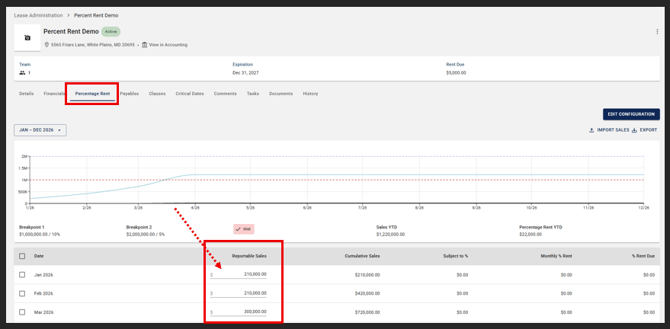
Select the lease and select the percentage rent tab, from here you can enter sales figures directly into the table provided below the reportable sales section.
Option 2: Importing Sales Data (CSV)
Follow the steps below to import sales data using the bulk import tool.
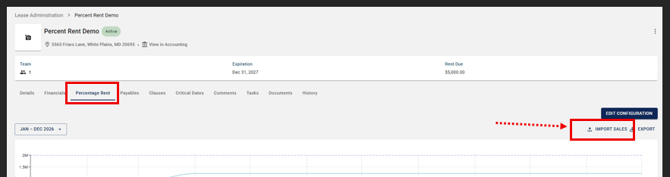
Step 1: Access the Import Tool Select the Import Sales button. This action will navigate you to the import tool located within the settings menu.
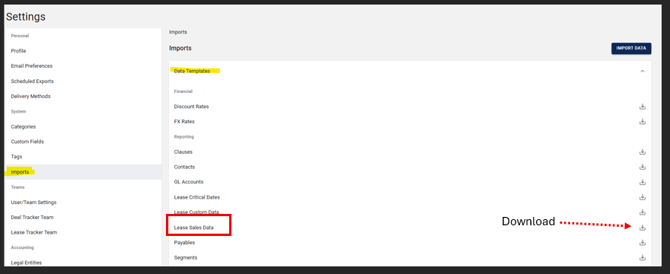
Step 2: Download the Data Template Use the specific template provided by the system. There are two ways to locate and download this file:
- Method A: Locate the Data Templates table, then select and download the Lease Sales Data template.
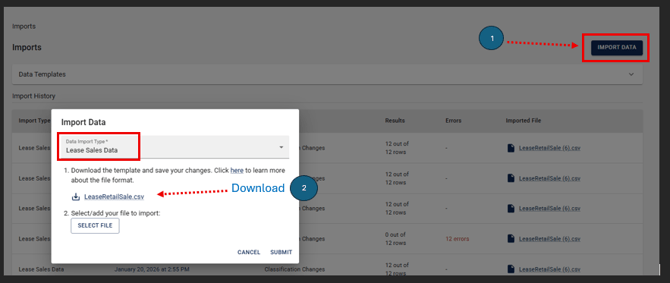
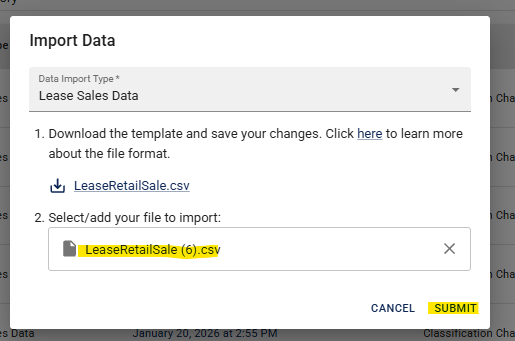
- Method B: Select the Import Data button, choose Lease Sales Data from the options, and download the template.
Step 3: Prepare Your Data Open the downloaded template, enter your reportable sales data, and save your changes to the file before proceeding.
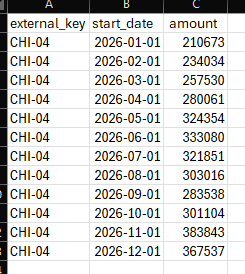
Step 4: Upload and Submit Return to the import tool. When you are ready to import, select the saved file and click Submit.
Step 5: Confirmation Once the system processes the file, you will receive an email notification confirming that the import has successfully completed.