![H-Teal (1).svg]](https://help.occupier.com/hubfs/H-Teal%20(1).svg)
How to Set Up and Manage Percentage Rent
Overview Percentage rent is a variable rent component often used in retail leases. Rent is calculated based on a percentage of sales once a specific "breakpoint" is exceeded.
1. Enabling the Feature
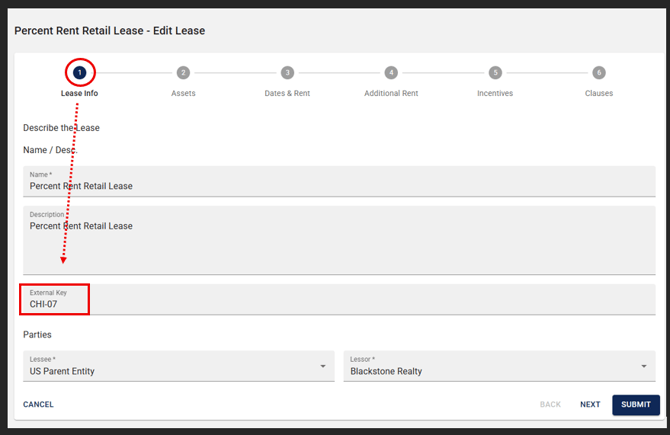
• Lease Info (Step 1): Ensure you enter an External Key (e.g., Store Number or Location ID). This unique identifier is required for uploading sales into Occupier via the Import Tool.
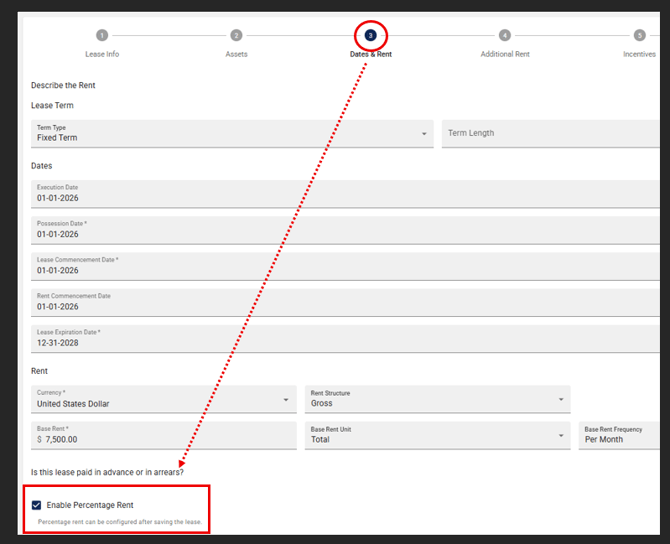
• Rent Schedules (Step 3): Scroll down and select the Enable Percent Rent checkbox to activate the configuration options.
2. Configuration
- After submitting the Lease input form, navigate to the Percentage Rent tab and click Edit Configuration,
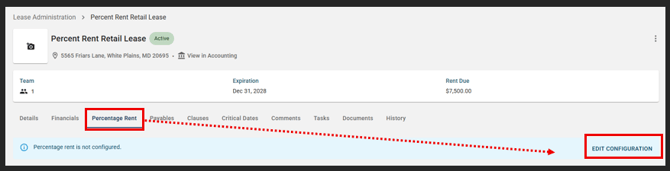
- then click Add Percentage Rent and submit.

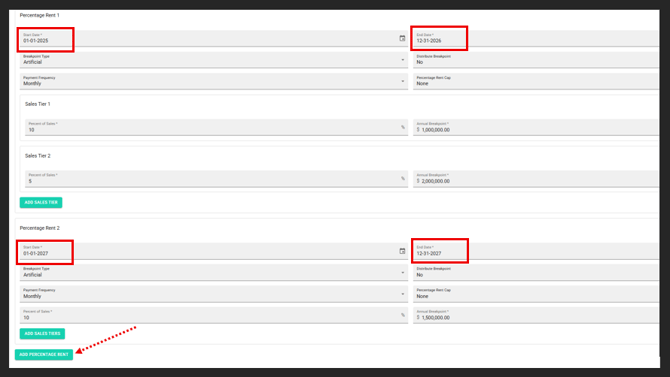
- Define Terms and Breakpoint type: Enter the periods (typically 12 months) and whether the breakpoint is Natural or Artificial.
Note: You can enter partial periods, but they cannot overlap with one another.
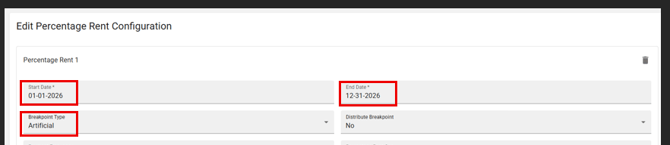
-
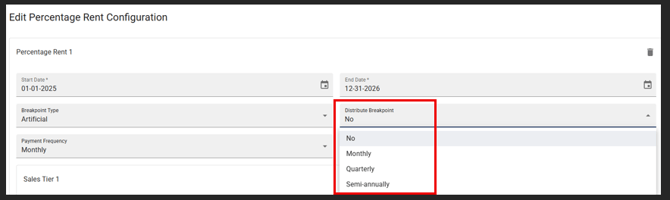
Select the breakpoint distribution frequency. Breakpoints can be distributed over a period of time where the annual sales threshold is divided across smaller time increments rather than being applied as one large annual figure. If breakpoint is annual and not distributed, select "no".
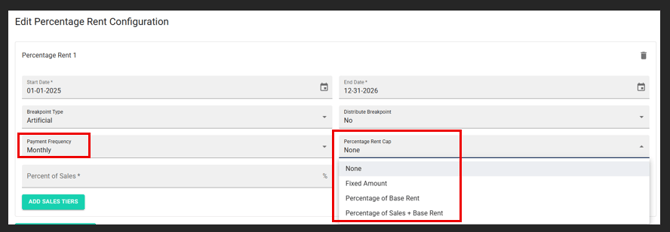
- Set additional parameters: Input the payment frequency (monthly, quarterly, semiannual, annual) and any applicable caps (fixed amount or as a % of base rent).
- Add percent of Sales and breakpoint amount
- Tiers: If the lease has different rates for different sales levels, use the Add Sales Tiers button.
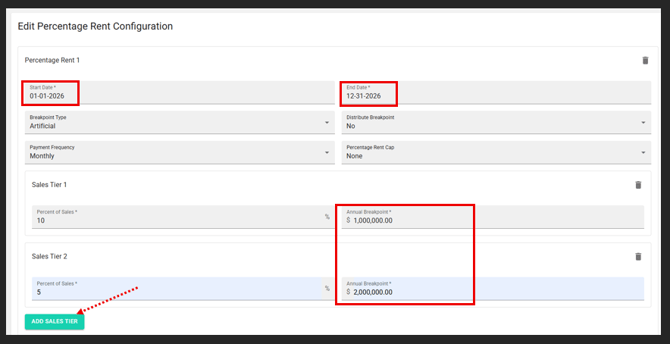
-
Add Percentage Rent period terms: Continue adding breakpoint periods and percent of sales for the remainder of the lease term by selecting the Add Percentage Rent button and hit submit upon completion.
3. Adding Sales Data
You can add reportable sales data in two ways:
• Manual Entry: Input sales directly into the table by period.
• Bulk Import: Go to Settings > Import Data. Download the Lease Sales Data template, fill it out, and upload the CSV file.
See How do I import lease sales data? article for details.
See How do I import lease sales data? article for details.
4. Reporting and Analysis
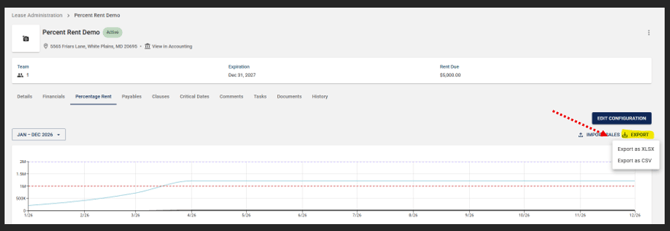
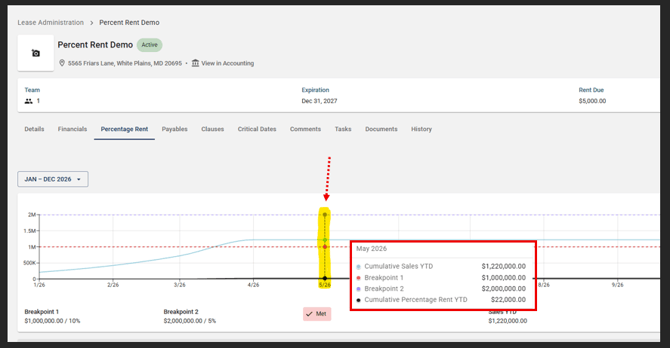
• Visual Charts: Hover over the Percent Rent chart to see breakpoints, reportable sales, and rent due for specific periods.
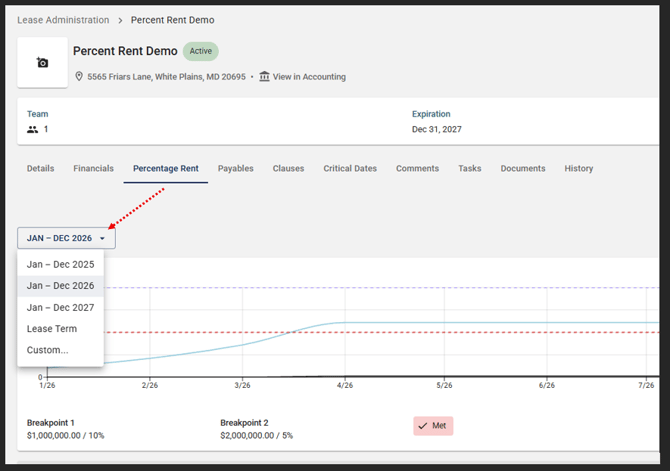
• Filtering: Toggle views by Lease Year, Lease Term, or Custom date ranges.
• Exporting: Select the desired period and click the Export button to download the data