---
title: How do I Anchor Critical Dates?
description: When the lease's commencement or expiration date changes (through an edit or amendment), Occupier automatically recalculates any anchored critical dates and notifies you of what changed.
---
[Skip to content](https://help.occupier.com/knowledge/how-do-i-anchor-critical-dates#main-content)
English
Show submenu for translations
[Customer portal](https://help.occupier.com/tickets-view?hsLang=en)
![H-Teal (1).svg\]](https://help.occupier.com/hubfs/H-Teal%20(1).svg)
- [Tickets](https://3455891.hs-sites.com/tickets-view)
- [Sign out](https://3455891.hs-sites.com/_hcms/mem/logout)
Open main navigation
Close main navigation
- [Tickets](https://3455891.hs-sites.com/tickets-view)
- [Sign out](https://3455891.hs-sites.com/_hcms/mem/logout)
- English
Show submenu for translations
- [Customer portal](https://help.occupier.com/tickets-view)
Hi there! How can we help?
- There are no suggestions because the search field is empty.
1. [Help Center](https://help.occupier.com/knowledge?hsLang=en)
2. [Lease Administration](https://help.occupier.com/knowledge/lease-administration?hsLang=en)
3. [Critical Dates](https://help.occupier.com/knowledge/lease-administration?hsLang=en#critical-dates)
# How do I Anchor Critical Dates?
## Critical Date Anchoring lets you tie critical dates to a lease’s commencement or expiration using a notice period, so Occupier auto-recalculates and when those anchor dates change — no manual updates required.
### Why did we build this?
Critical dates in Occupier can now be anchored — meaning they are defined relative to a key lease date rather than entered as a static, absolute value. When the lease's commencement or expiration date changes (through an edit or amendment), Occupier automatically recalculates any anchored critical dates.
This reduces silent errors that occur when leases are amended and critical dates are left behind, and gives your portfolio a more reliable, explainable record of key events.
| **Example:** If you have a renewal notice obligation that must be sent 270 days before expiration, you can anchor that critical date to the expiration date with a notice period that begins 270 days before. Any time the expiration changes, Occupier recalculates the notice date automatically. |
| --- |
### What does it do?
#### **Anchor**
An anchor is the reference point from which a critical date is calculated. Occupier supports two anchor types:
- Commencement Date — the date the lease term begins
- Expiration Date — the date the lease term ends
#### **Notice Start**
The notice start is the length of time before or after the anchor date when the critical date begins. You define the number of days, months or years and whether it falls before or after the anchor. This represents the earliest date the tenant is contractually allowed to take action on the critical date or send a notice to the landlord.
| **Example:** Lease renewal or termination options set to either 270 days before Expiration or 6 months after Commencement |
| --- |
#### **Notice End**
This is the deadline by which the tenant *must* deliver an action for an option or critical date to the landlord. Miss this date, and the option or action is typically forfeited.
**Effective Date (optional field)**
This optional field typically points to the renewal or expiration date of the lease term and is set to occur after the notice period ends. For anchored critical dates, it remains optional. Use this field when you are manually entering an effective date without using an anchor.
#### **Anchored vs. Unanchored Dates**
| **Type** | **Behavior** |
| --- | --- |
| Anchored | Has an assigned anchor with notice start and end dates. Recalculates automatically when the anchor date changes. |
| Unanchored | A manually entered date with no anchor. Remains exactly as entered and is never modified by the recalculation engine. |
| **Note:** You are not required to anchor a critical date. Unanchored dates remain fully valid and are unaffected by any recalculation. |
| --- |
### How to Use it
#### **Setting Up an Anchor**
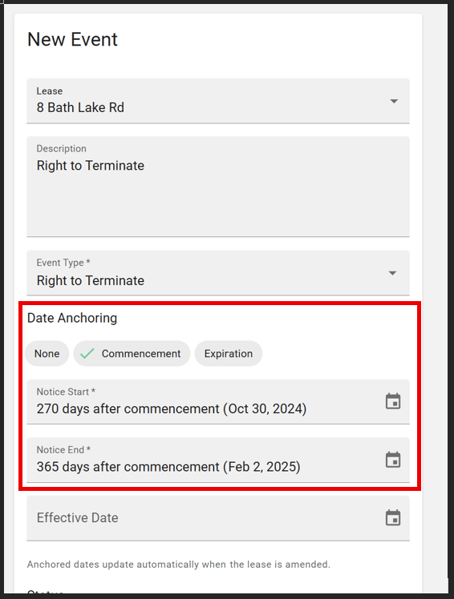
You can assign an anchor when creating a new critical date or when editing an existing one. The anchor fields are optional — complete them only if this critical date should automatically follow a commencement or expiration date.
#### When Creating a Critical Date
1. Navigate to the Critical Dates tab on the relevant lease.
2. Click Add Critical Date.
3. Fill in the critical date name, type, and any required fields.
4. In the Anchor section, select an anchor type (Commencement or Expiration).
5. Enter the start and end of the notice date: the number of days, months, or years and whether it is before or after the anchor.
6. Enter the Effective Date (optional).
7. The calculated date will be shown so you can confirm it looks correct before submitting and saving.
8. Click Submit to save the critical date and any associated anchors.
#### **When Editing an Existing Critical Date**
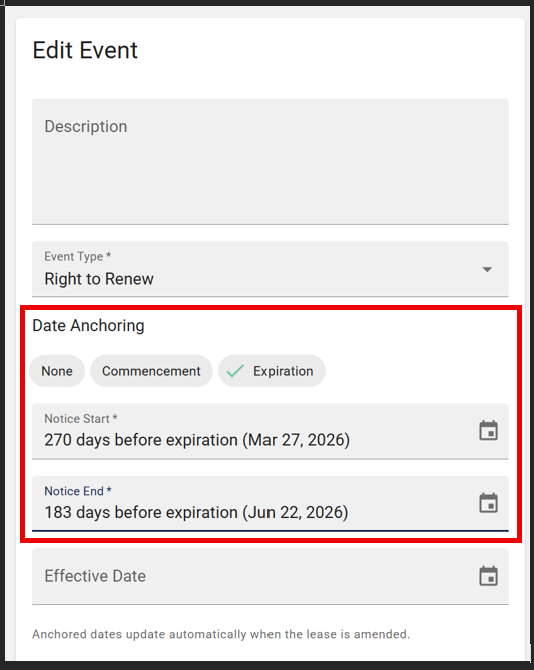
You can also add anchors when editing a critical date that existed before this feature was released. To anchor an existing date:
1. Open the critical date from the Critical Dates tab.
2. Select the critical date you'd like to anchor then click Edit.
3. In the Anchor section, select an anchor type (Commencement or Expiration).
4. Enter the start and end of the notice date: the number of days, months, or years and whether it is before or after the anchor.
5. Enter the Effective Date (optional).
6. The calculated date will be shown so you can confirm it looks correct before submitting and saving.
7. Click Submit to save the critical date and any associated anchors.
| **Tip:** The anchor section is optional. If you skip it, your critical date behaves exactly as it did before — as a fixed, manually entered date. |
| --- |
### **Automatic Recalculation**
Once a critical date has an anchor assigned, Occupier monitors the lease for changes to the anchor date. When the commencement or expiration date is updated — through a direct edit or via a lease amendment — Occupier recalculates automatically.
#### **What Triggers a Recalculation**
- A change to the lease's commencement date (edit or amendment)
- A change to the lease's expiration date (edit or amendment)
#### **What is Updated**
Occupier recalculates any anchored critical date on the lease that meets all of the following criteria:
- The critical date has a defined anchor
- The critical date's status is Unactioned
- The critical date has not already passed
| **Note:** Past critical dates and dates you have already marked as Exercised or Ignored are never recalculated. |
| --- |
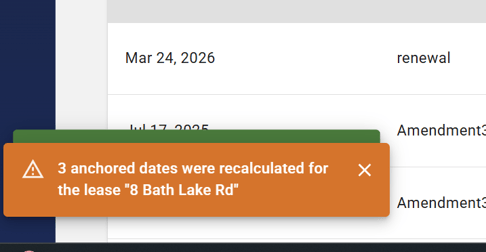
#### **In-App Notification**
After a lease commencement or expiration date is updated, Occupier recalculates all anchored critical dates and displays an in-app notification.
### **Frequently Asked Questions**
### Do I have to add an anchor to every critical date?
No. Anchors are entirely optional. Unanchored critical dates continue to work as they always have and are never modified by the recalculation engine.
### What happens if I have not yet set an anchor on a critical date and the commencement date changes?
Nothing. The engine only acts on critical dates that have an anchor defined. If a critical date has no anchor, it remains exactly as entered.
### Can I remove an anchor from a critical date after it has been set?
Yes. You can edit the critical date and clear the anchor fields at any time. Once removed, the date will no longer be subject to automatic recalculation.
### What if I want to override the recalculated date?
You can edit the critical date directly after a recalculation. However, if the anchor is still active, the engine will recalculate again the next time the anchor date changes. To prevent future recalculations, remove the anchor from the critical date.
### Will this change any of my existing critical dates?
No. Existing critical dates are unanchored by default. They will only be recalculated if you explicitly add an anchor to them. No data is changed without your action.
### Related Articles
- [Adding Critical Dates](https://help.occupier.com/knowledge/how-do-i-add-critical-dates-in-lease-administration?hsLang=en)
- [Critical Date Notifications](https://help.occupier.com/knowledge/how-do-i-change-my-critical-date-notification-preferences?hsLang=en)
- [Actioning Critical Dates](https://help.occupier.com/knowledge/how-do-i-update-the-status-of-my-critical-dates?hsLang=en)
### Need Help?
If you have questions about Anchoring Critical Dates or need assistance setting up anchors for your portfolio, please reach out to the Occupier Customer Experience team at customersuccess@occupier.com.
- [Getting Started](https://help.occupier.com/knowledge/getting-started?hsLang=en#main-content)
- [The Basics](https://help.occupier.com/knowledge/getting-started?hsLang=en#the-basics)
- [Occupier Onboarding & Abstraction](https://help.occupier.com/knowledge/getting-started?hsLang=en#occupier-onboarding-abstraction)
- [User & Team Management](https://help.occupier.com/knowledge/getting-started?hsLang=en#user-team-management)
- [Email & Notification Management](https://help.occupier.com/knowledge/getting-started?hsLang=en#email-notification-management)
- [Custom Data Management](https://help.occupier.com/knowledge/getting-started?hsLang=en#custom-data-management)
- [Lease Administration](https://help.occupier.com/knowledge/lease-administration?hsLang=en#main-content)
- [Equipment Leases](https://help.occupier.com/knowledge/lease-administration?hsLang=en#equipment-leases)
- [Change History Log](https://help.occupier.com/knowledge/lease-administration?hsLang=en#change-history-log)
- [Clauses](https://help.occupier.com/knowledge/lease-administration?hsLang=en#clauses)
- [Document Storage](https://help.occupier.com/knowledge/lease-administration?hsLang=en#document-storage)
- [Financials](https://help.occupier.com/knowledge/lease-administration?hsLang=en#financials)
- [Creating & Editing a Lease](https://help.occupier.com/knowledge/lease-administration?hsLang=en#creating-editing-a-lease)
- [Critical Dates](https://help.occupier.com/knowledge/lease-administration?hsLang=en#critical-dates)
- [Lease Column Configurations](https://help.occupier.com/knowledge/lease-administration?hsLang=en#lease-column-configurations)
- [Custom Fields](https://help.occupier.com/knowledge/lease-administration?hsLang=en#custom-fields)
- [Contacts](https://help.occupier.com/knowledge/lease-administration?hsLang=en#contacts)
- [Filtering](https://help.occupier.com/knowledge/lease-administration?hsLang=en#filtering)
- [Assets](https://help.occupier.com/knowledge/lease-administration?hsLang=en#assets)
- [Lease Data Exports](https://help.occupier.com/knowledge/lease-administration?hsLang=en#lease-data-exports)
- [Occupier Analytics Dashboard](https://help.occupier.com/knowledge/lease-administration?hsLang=en#occupier-analytics-dashboard)
- [Customizing Data Categories](https://help.occupier.com/knowledge/lease-administration?hsLang=en#customizing-data-categories)
- [Lease Admin Overview](https://help.occupier.com/knowledge/lease-administration?hsLang=en#lease-admin-overview)
- [Column Configuration & Filtering](https://help.occupier.com/knowledge/lease-administration?hsLang=en#column-configuration-filtering)
- [Tasks & Commenting](https://help.occupier.com/knowledge/lease-administration?hsLang=en#tasks-commenting)
- [Lease Payables](https://help.occupier.com/knowledge/lease-administration?hsLang=en#lease-payables)
- [Lease Data Imports](https://help.occupier.com/knowledge/lease-administration?hsLang=en#lease-data-imports)
- [Percentage Rent](https://help.occupier.com/knowledge/lease-administration?hsLang=en#percentage-rent)
- [Lease Accounting](https://help.occupier.com/knowledge/lease-accounting?hsLang=en#main-content)
- [Understanding ASC 842, IFRS16, GASB87 and FRS102](https://help.occupier.com/knowledge/lease-accounting?hsLang=en#understanding-asc-842-ifrs16-gasb87-and-frs102)
- [Account Set-up](https://help.occupier.com/knowledge/lease-accounting?hsLang=en#account-set-up)
- [FX Rates](https://help.occupier.com/knowledge/lease-accounting?hsLang=en#fx-rates)
- [Recognizing a Lease](https://help.occupier.com/knowledge/lease-accounting?hsLang=en#recognizing-a-lease)
- [Impairing a Lease](https://help.occupier.com/knowledge/lease-accounting?hsLang=en#impairing-a-lease)
- [Lease Modifications](https://help.occupier.com/knowledge/lease-accounting?hsLang=en#lease-modifications)
- [Lease Accounting Reporting](https://help.occupier.com/knowledge/lease-accounting?hsLang=en#lease-accounting-reporting)
- [Importing Data Into Accounting](https://help.occupier.com/knowledge/lease-accounting?hsLang=en#importing-data-into-accounting)
- [Allocations](https://help.occupier.com/knowledge/lease-accounting?hsLang=en#allocations)
- [Close Books Process](https://help.occupier.com/knowledge/lease-accounting?hsLang=en#close-books-process)
- [NetSuite Journal Entry Integrations](https://help.occupier.com/knowledge/lease-accounting?hsLang=en#netsuite-journal-entry-integrations)
- [Transaction Management](https://help.occupier.com/knowledge/transaction-management?hsLang=en#main-content)
- [Task Templates](https://help.occupier.com/knowledge/transaction-management?hsLang=en#task-templates)
- [Filtering](https://help.occupier.com/knowledge/transaction-management?hsLang=en#filtering)
- [Custom Categories](https://help.occupier.com/knowledge/transaction-management?hsLang=en#custom-categories)
- [Deal Column Configurations](https://help.occupier.com/knowledge/transaction-management?hsLang=en#deal-column-configurations)
- [Documents](https://help.occupier.com/knowledge/transaction-management?hsLang=en#documents)
- [Comps](https://help.occupier.com/knowledge/transaction-management?hsLang=en#comps)
- [Deal Stages](https://help.occupier.com/knowledge/transaction-management?hsLang=en#deal-stages)
- [Creating & Editing a Deal](https://help.occupier.com/knowledge/transaction-management?hsLang=en#creating-editing-a-deal)
- [Site Selection](https://help.occupier.com/knowledge/transaction-management?hsLang=en#site-selection)
- [Broker Deals CRM](https://help.occupier.com/knowledge/broker-deals-crm?hsLang=en#main-content)
- [Custom Deal Stages](https://help.occupier.com/knowledge/broker-deals-crm?hsLang=en#custom-deal-stages)
- [Custom Fields](https://help.occupier.com/knowledge/broker-deals-crm?hsLang=en#custom-fields)
- [Broker Deal Exports](https://help.occupier.com/knowledge/broker-deals-crm?hsLang=en#broker-deal-exports)
- [Broker Digest emails](https://help.occupier.com/knowledge/broker-deals-crm?hsLang=en#broker-digest-emails)
- [Critical Date Columns](https://help.occupier.com/knowledge/broker-deals-crm?hsLang=en#critical-date-columns)
- [Creating & Editing a Deal](https://help.occupier.com/knowledge/broker-deals-crm?hsLang=en#creating-editing-a-deal)
- [Comps](https://help.occupier.com/knowledge/broker-deals-crm?hsLang=en#comps)
- [Site Selection](https://help.occupier.com/knowledge/broker-deals-crm?hsLang=en#site-selection)
- [Broker Deal Teams](https://help.occupier.com/knowledge/broker-deals-crm?hsLang=en#broker-deal-teams)
- [Negotiations & Proposals](https://help.occupier.com/knowledge/broker-deals-crm?hsLang=en#negotiations-proposals)
- [Clients Tab](https://help.occupier.com/knowledge/broker-deals-crm?hsLang=en#clients-tab)
- [Monthly Release Notes](https://help.occupier.com/knowledge/monthly-release-notes?hsLang=en#main-content)
- [2025 Product Release Notes](https://help.occupier.com/knowledge/monthly-release-notes?hsLang=en#2025-product-release-notes)
- [2024 Product Release Notes](https://help.occupier.com/knowledge/monthly-release-notes?hsLang=en#2024-product-release-notes)
- [2026 Product Release Notes](https://help.occupier.com/knowledge/monthly-release-notes?hsLang=en#2026-product-release-notes)
[](https://www.occupier.com)
[mailto:email@email.com](mailto:email@email.com)
Copyright © 2026, Occupier