![H-Teal (1).svg]](https://help.occupier.com/hubfs/H-Teal%20(1).svg)
There are three levels of alert control available to admins:
- Account-level bulk controls — admins can enable or disable all lease alerts for a user across the entire portfolio from Account Settings.
- Per-lease alert toggle (self-service) — any team member can mute alerts for a specific lease from the Critical Dates tab.
- Lease team management — admins can set the alert preference for any user when adding or editing that user on a specific lease.
|
Note: Only users with an Admin role at the account level can access Account Settings > Lease Users to manage other users' alert settings. |
1. Navigating to Account Settings — Users and Lease Tracker Team
Account Settings is your central hub for managing all user permissions and alert preferences across your portfolio.
- Select User/Team Settings to add or edit users general access.
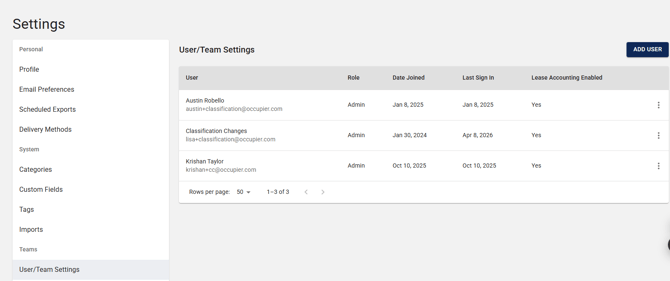
The Lease Users list shows every user in your account along with their account-level role. From here you can access per-user controls and the dedicated user access management page.
2. Account-Level Bulk Alert Controls
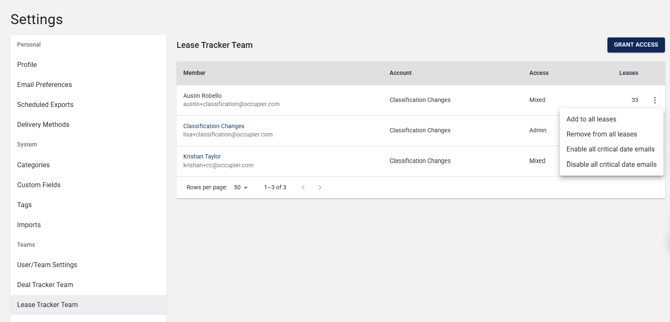
From the Lease Tracker Team list in Account Settings, admins can enable or disable all lease alerts for any user across the entire portfolio with a single click, and can also grant that user access to the Lease Tracker Team.
- Click the ellipsis next to the user to choose their access level and critical date notification settings.
3. Admin Controls in the Lease Team Modal
Admins can manage alert settings for specific team members directly from within a lease's Manage Team modal. This allows admins to set preferences on behalf of users when adding or editing team members.
Creating a User Team - Per-Lease
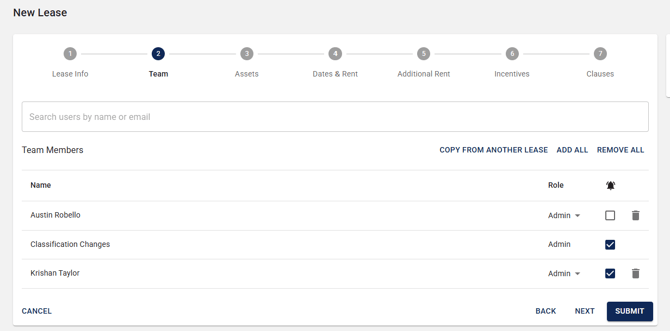
- When adding a lease in Occupier, go to Step 2 – Team to choose which users to add or remove and to turn their notifications on or off. You can also copy the user list from another lease. This applies only to that user on that lease.
|
Note: Disabling alerts here does not remove the user from the lease team. They will continue to appear in the Lease Team section and can still view all lease data according to their role. |
3. Per-Lease Alert Toggle (Self-Service)
All team members — not just admins — can control their own critical date email alerts on a per-lease basis from the Critical Dates tab within a lease.
How it works
Each user has an Enable My Alerts for this Lease toggle on the Critical Dates tab of any lease they can access. Turning it OFF stops future alert emails for that specific lease only; their role and access stay the same.
Turning it ON restarts alerts for that lease based on their global email preferences.This setting is unique to each user and each lease.
Admins can also adjust roles and alert settings for every lease individually.
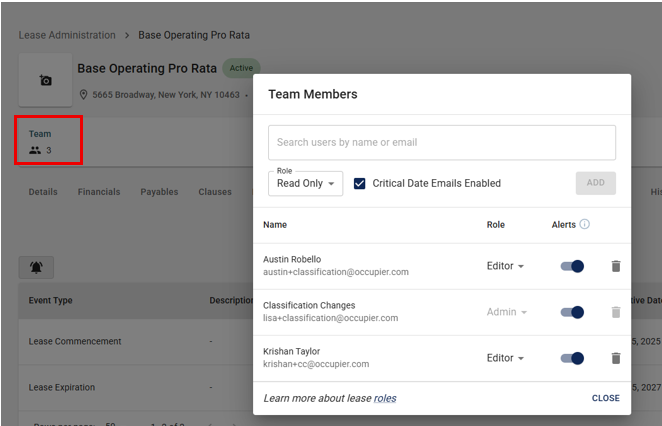
- Open a lease, go to the Critical Dates tab, then click the team icon in the top-left corner.
- Users can change critical date notifications for the individual lease
- Admins can add, edit, or remove users, assign roles, and enable or disable notifications.
|
Need more help? Contact our Customer Success team at customersuccess@occupier.com |